
Set up Rafiqa in 3 minutes
Two phones, one family code. First you set up your own phone, then your parent's. Your parent never has to deal with settings.
Get it on Google Play1. Your phone
- 1
Download Rafiqa and sign in with Google
Download Rafiqa from Google Play, choose your language and sign in with your Google account.
- 2
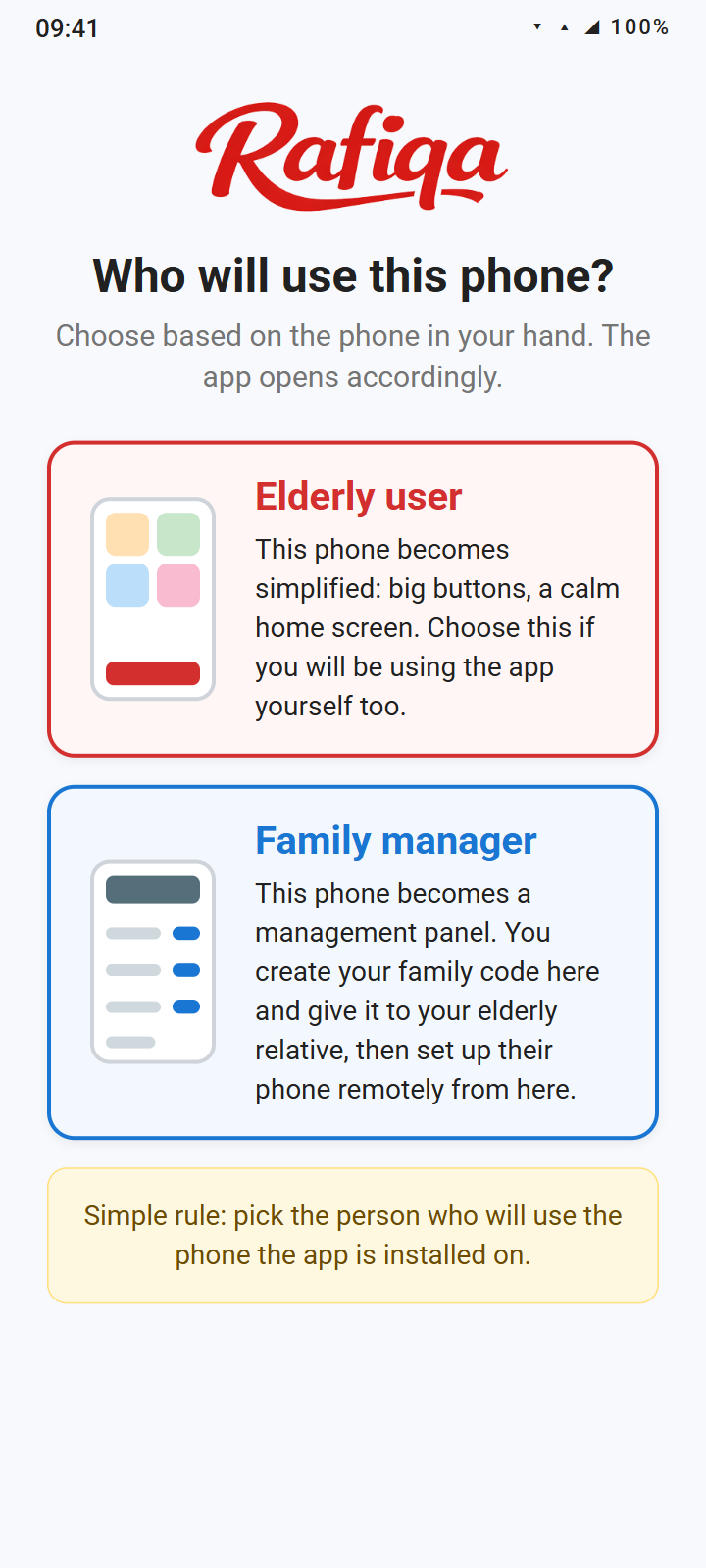
Choose "Family manager"
At "Who will use this phone?", choose "Family manager" because the phone is yours. Your phone becomes the management panel.
- 3
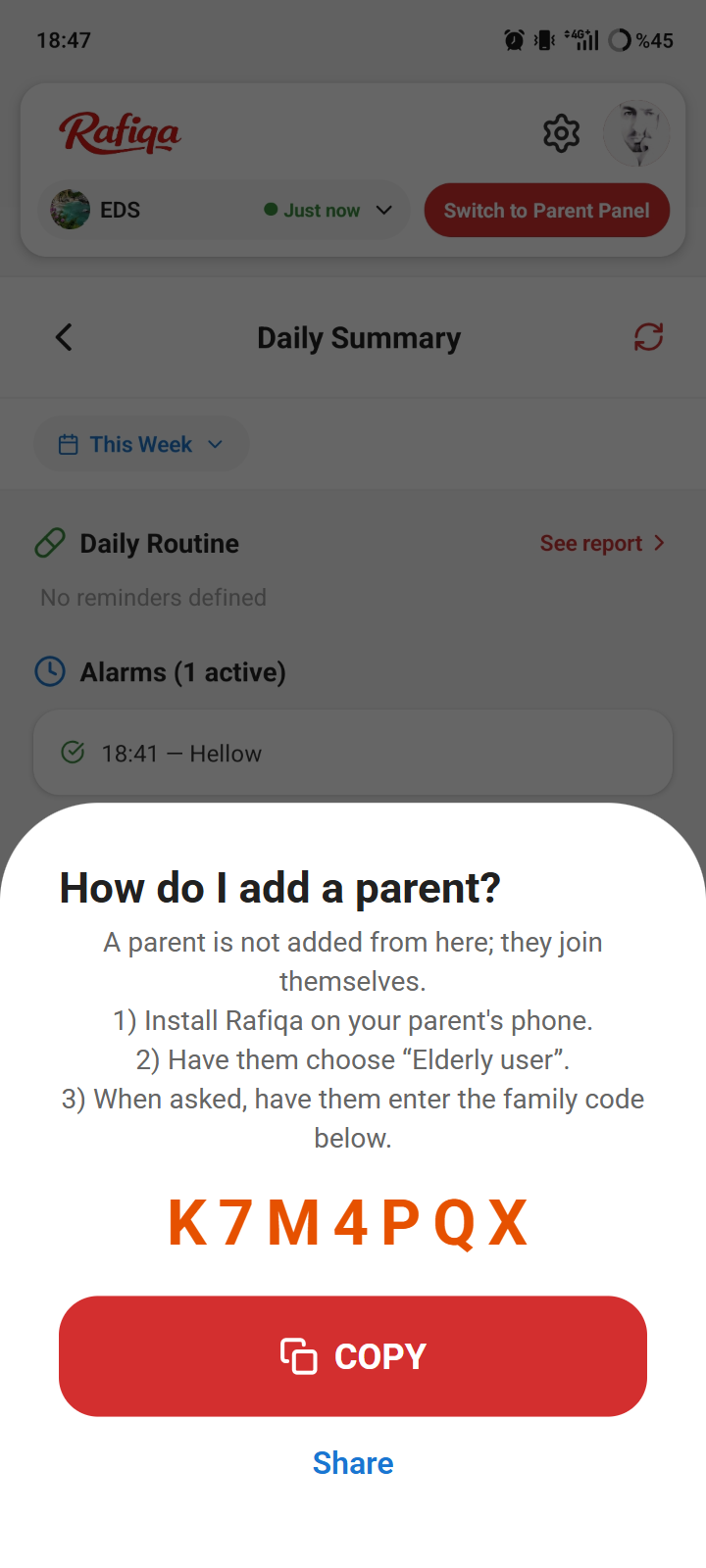
Get your family code
Tap "Add Parent" in the parent card at the top of your panel. Your family code appears there; copy it or send it to your parent. Until your parent joins, your panel has a demo parent so you can try everything.
2. Your parent's phone
- 4
Install Rafiqa on your parent's phone
Download the same app on their phone and sign in with their Google account.
- 5
Choose "Elderly user"
This time the phone belongs to your parent, so choose "Elderly user".
- 6
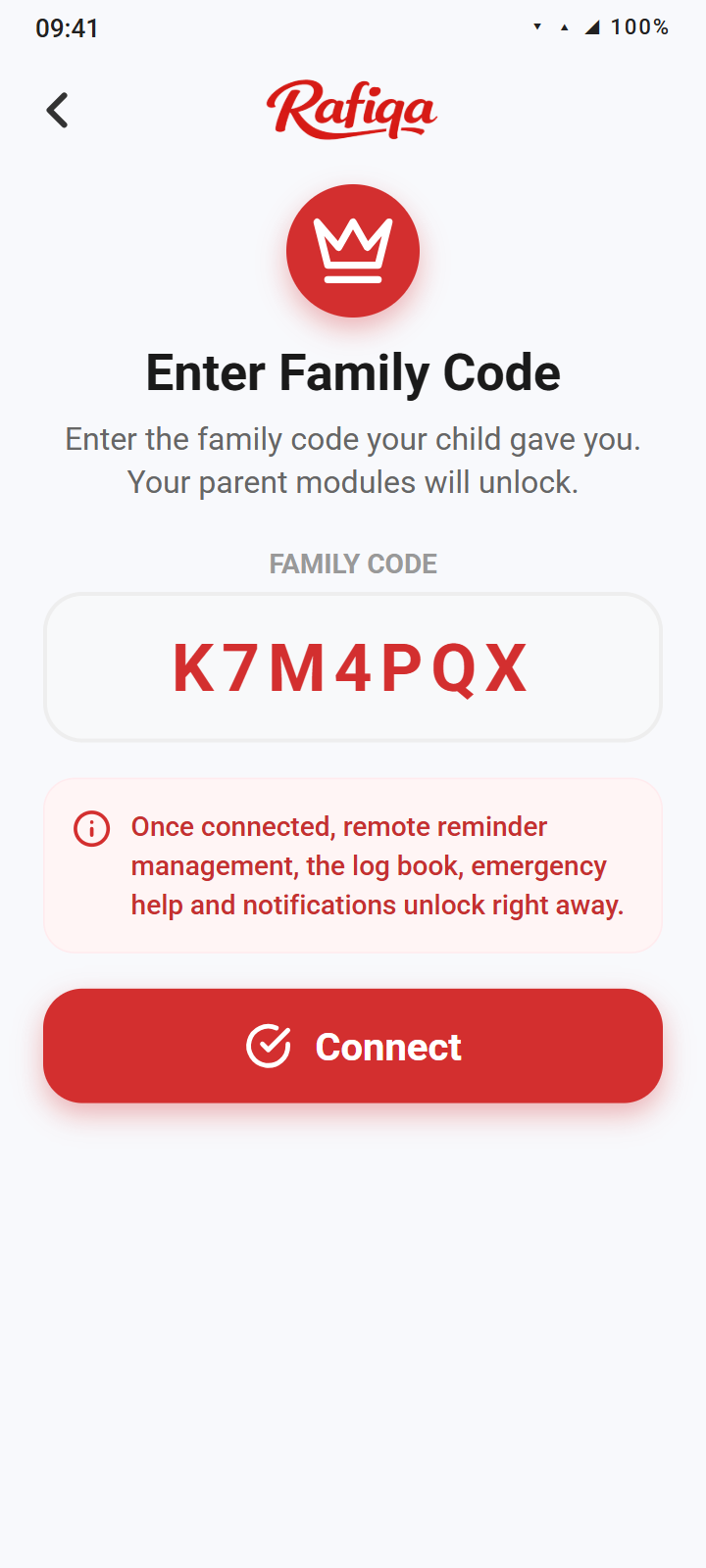
Enter the family code
When asked, enter your family code and confirm. Your parent's phone connects to your panel right away.
3. Done
- 7
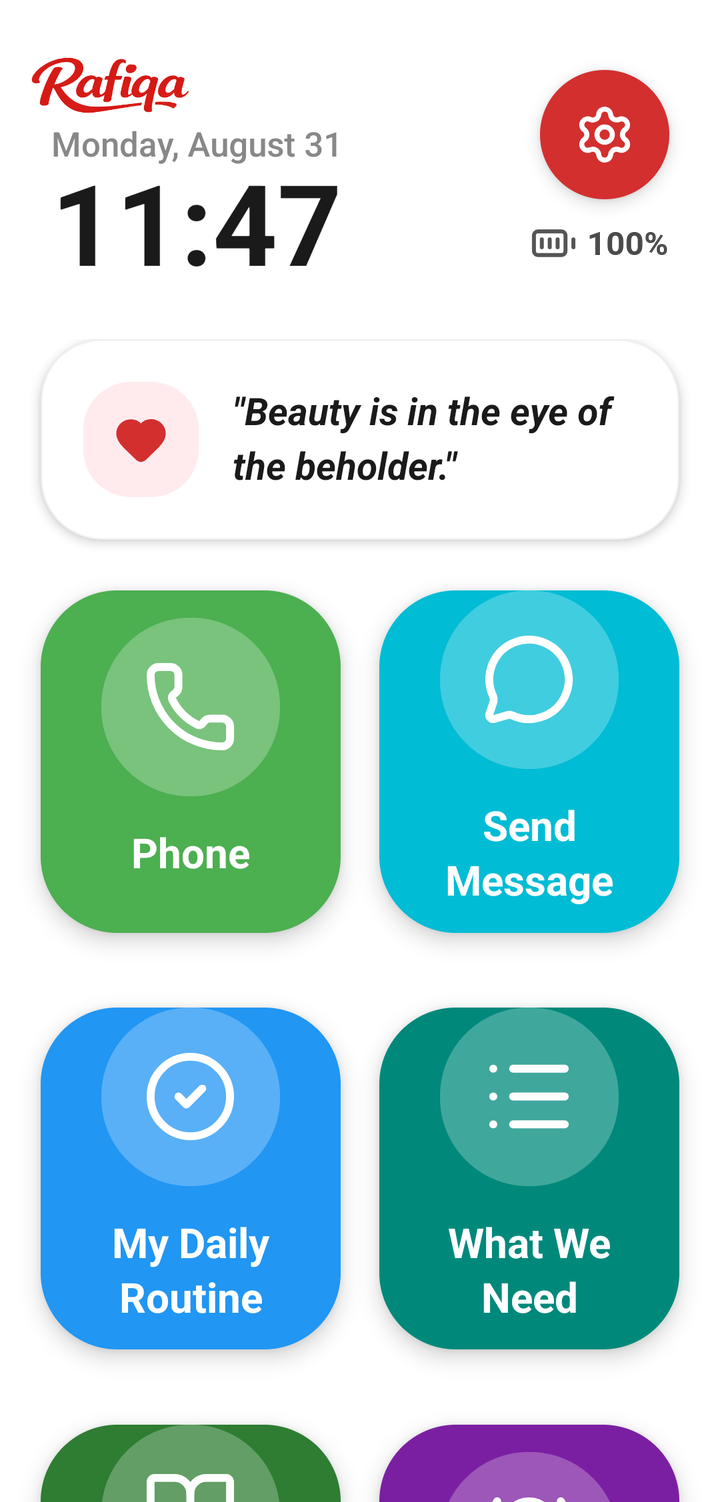
Your parent sees a simple big-button screen
Phone, My Daily Routine, Reminders and Get Help open with a single tap. On first launch a short tour shows the screen step by step.
- 8
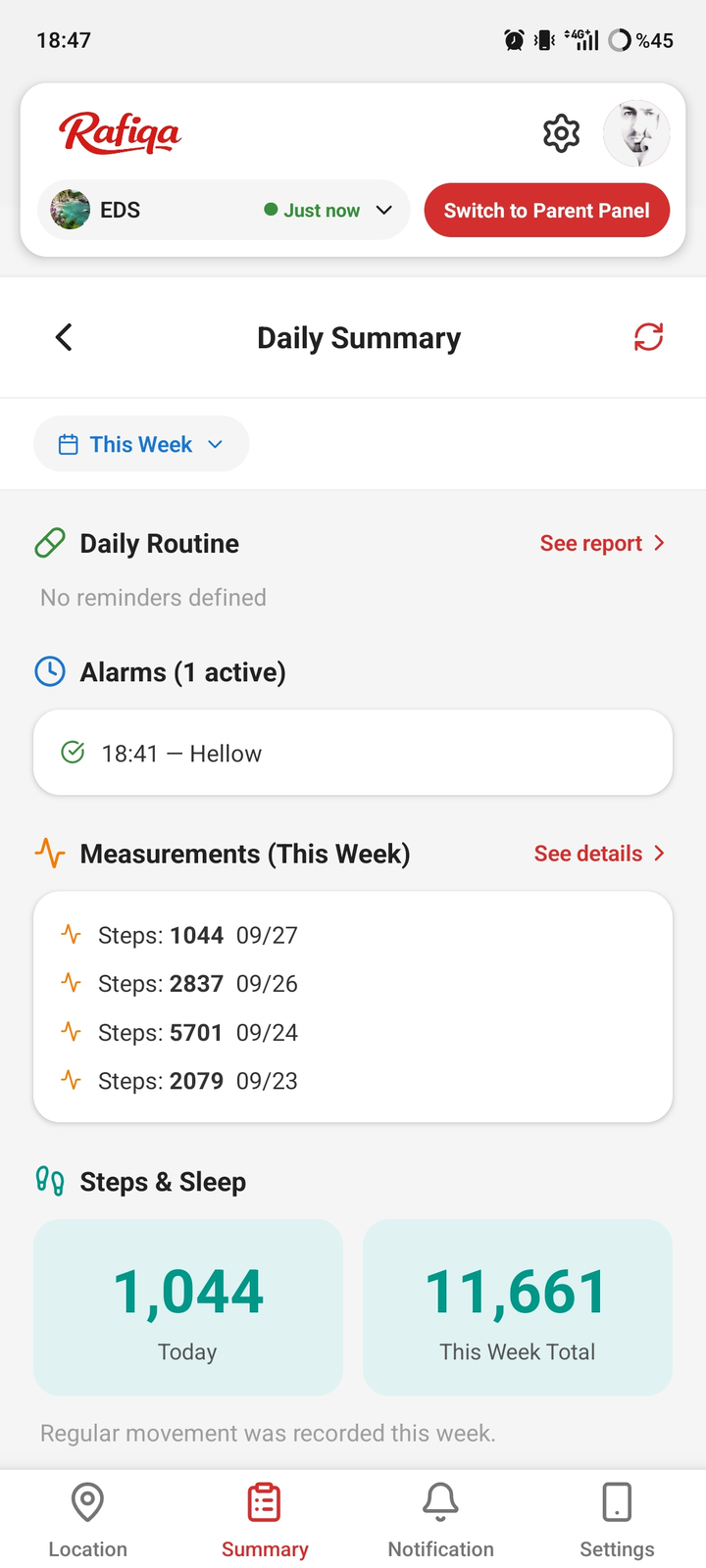
You follow everything from your own panel
Location and safe zones, daily routines, measurements and notifications are on your phone. You can adjust your parent's home screen and settings remotely.
4. First-day checklist
- 9
Grant the permissions on your parent's phone
On first launch a short setup wizard asks for permissions one by one. Choose "Allow all the time" for location and "Allow" for notifications, and accept the battery optimization exemption. That way reminders, location and fall detection keep working while the phone is locked.
- 10
If you use Xiaomi, Oppo, Realme or Huawei
These brands may close background apps at night. In the phone settings, turn on "Autostart" for Rafiqa and set battery restriction to "No restrictions".
- 11
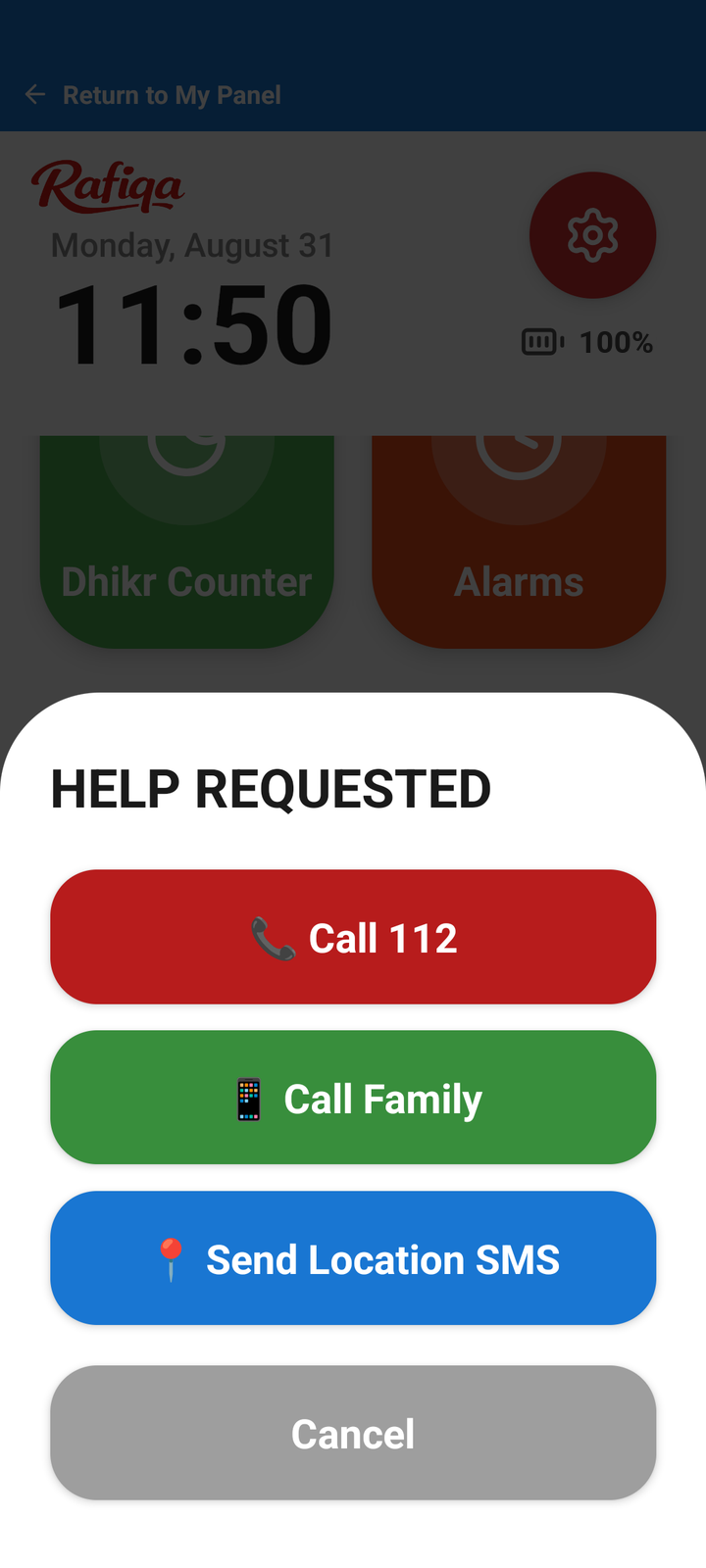
Get to know the emergency button
The red "Get Help" button on your parent's home screen notifies you right away. From the window that opens they can call the emergency line or the family, or send their location by SMS. You can change the number "Call Family" dials on the Fall Detection screen.
5. Everyday use
- 12
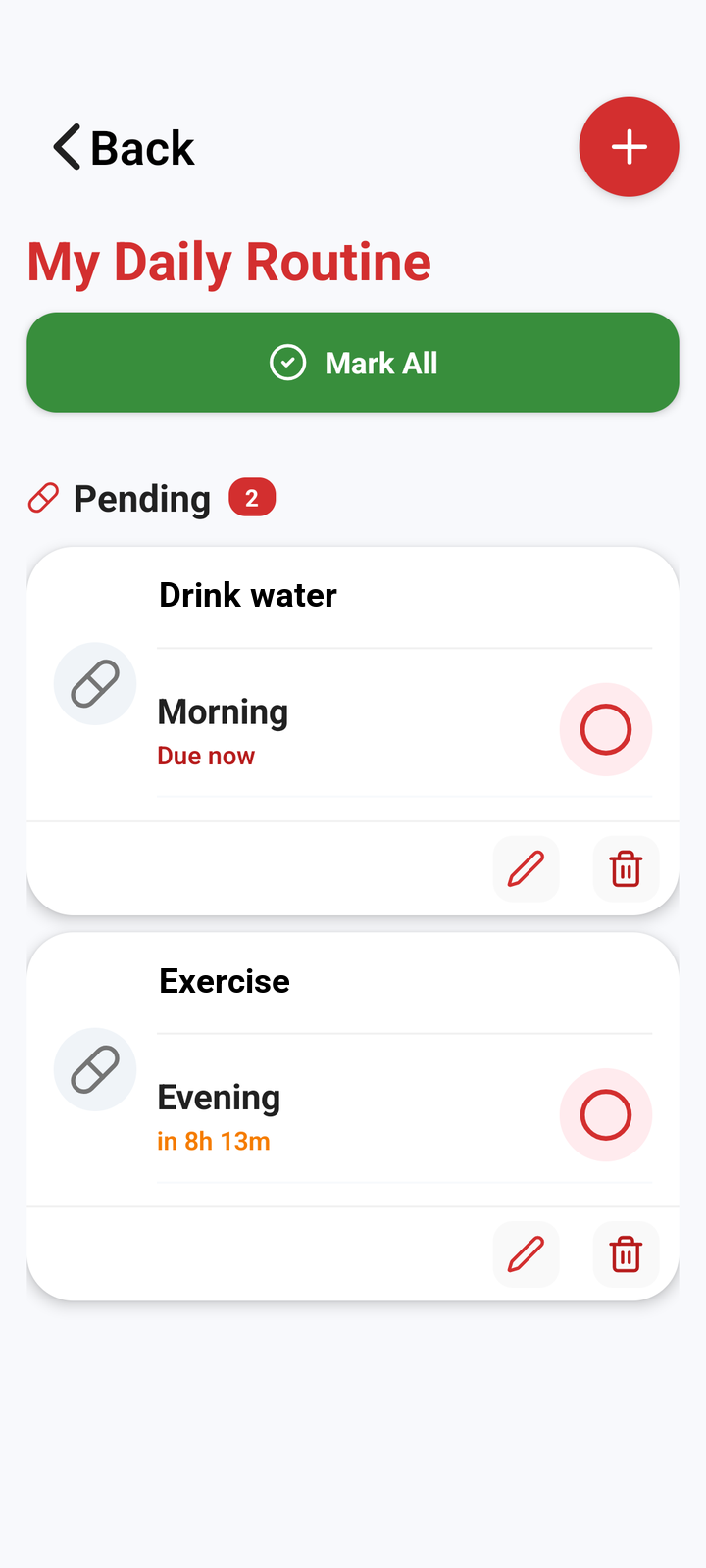
Add daily routines
Add the day's tasks (drinking water, a walk, an appointment…) to My Daily Routine. Your parent's phone reminds them on time and they mark them as done; you follow it on the Summary tab.
- 13
Location and safe zones
The Location tab shows your parent's latest location. Add places like home or the market as safe zones and you get a notification when your parent arrives or leaves. The history button shows the route of the last 7 days.
- 14
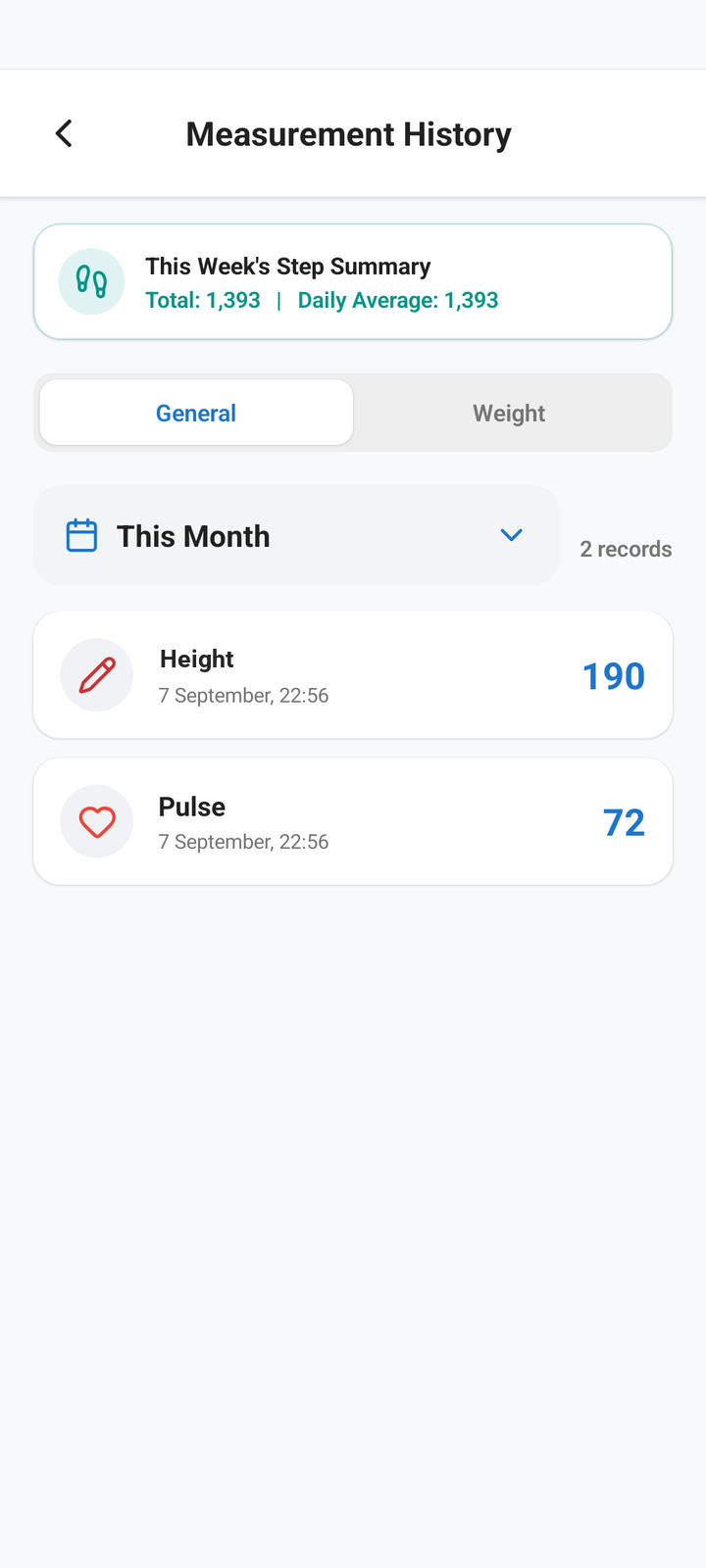
Measurements
Blood pressure, sugar, temperature, pulse and weight are saved in My Measurements, and you see them in your panel too. Steps and sleep come from the phone's health data.
- 15
Adjust the home screen remotely
Tap "Switch to Parent Panel" in your panel to open the screen your parent sees. From the red gear you can hide and reorder modules; the change appears on their phone too.
6. Grow your family circle
- 16
A second parent
To look after both your mother and father, the Family Multi plan lets a second parent join with the same family code. Switch between them from the card at the top of your panel.
- 17
Siblings can manage too
A sibling can also install Rafiqa and join as a second manager with your family code, so you look after your parent together.
The family code in the images is an example.
Frequently asked
Where do I find my family code?
Tap "Add Parent" in the parent card at the top of your panel; your code is there. You can also copy it and send it in a message.
I chose the wrong role. What now?
The role can't be changed inside the app. Write to rafiqa@masync.co and we will fix your account together.
When does the free period start?
Your 7 days of free use start when your parent connects with your family code. There is no rush to finish the setup.
What if my parent has an iPhone?
Rafiqa currently works only on Android phones (Android 8.0 and later).
Reminders or notifications are late
On your parent's phone, Rafiqa's notification permission must be on and the app must be exempt from battery optimization. On brands like Xiaomi, Oppo and Realme, also turn on "Autostart".
The location doesn't update
Location must be on on your parent's phone and Rafiqa needs "Allow all the time" permission. If the phone is offline for a while, the location updates once it reconnects.
The family code isn't accepted
Enter the code without spaces; letters are capitalized automatically. New codes have 7 characters, and 6-digit codes from older accounts still work. If it keeps failing, copy the code from "Add Parent" in your panel and send it in a message.
What is the demo parent?
It's a sample parent so you can try the panel until your real parent joins. It is removed automatically when your real parent connects with your family code.
What if my parent finds the app hard to use?
On first launch a short tour shows the home screen step by step, and each module has a short tour the first time it opens. The tour can be replayed from Settings, and you can simplify the home screen remotely.